There are three main window managers, or "the way the OS looks and feels", for Linux. Gnome and KDE are the oldest, and XFCE is the newest. There are some advantages to each, and most of the talk over superiority are between Gnome and KDE, so I'll give some more press to XFCE as compensation. So here we go, and please ask questions if you have them.
The Background
KDE was the first breakthrough window manager, started in October of 1996. It was based on Trolltech's Qt development library, and some members of the community became afraid that such a crucial piece of software might go proprietary, they split and formed the Gnome windows manager in 1997. Gnome was developed out of the toolkit originally used for the GIMP, GTK+. XFCE was a separate project, started in 1996, that was similar to KDE. It gained the GTK+ toolkit abilities in 1998 and can take install and run programs for KDE and Gnome.
The Advantages
KDE and Gnome both have the advantage of a huge community behind them, as well as the fact that they are the two most prevalent window managers in Linux. KDE typically is considered to have the best programs, and looking through my preferred apps on my computer I would have to agree. Gnome typically has a better user interface and makes an attempt at being lightweight, though in my opinion both KDE and Gnome are overly bloated.
XFCE is rarely talked about, for reasons I will never understand. Try this out, get three 100 MHz computers with 48mb RAM and install Kubuntu, Ubuntu, and Xubuntu on them. Then tell me which one actually runs. XFCE is the lightest of the mainstream window managers, though tiny window manager is still much smaller. It also has the ability to run all KDE and Gnome applications. In my mind, XFCE is the easiest to use for those used to using Windows and can unite the best of all worlds. It's easier to change the look, since any window manager tweaks made for XFCE, Gnome, or KDE can be used. It definitely runs the fastest as well.
If you want to find out which you like the best pick up a live CD and try it out, or if you're feeling adventurous you can always triple boot and see what you think. It's also possible to do concurrent installations and switch at login, but it can be a huge headache. If you have your own opinions, leave some comments.
Search Tillamook Rage


2.06.2008
Erase the MBR of your drive
Sometimes you need to start over, completely. I just ran into that on a USB drive. I was reinstalling the OS to the drive and the MBR refused the release its information. The MBR (Master Boot Record) is where Grub or LiLo are installed in Linux or where the boot information for Windows is installed.
BE VERY CAREFUL WHEN USING DD, IT CAN COMPLETELY DESTROY THE DATA ON YOUR DRIVE. DO NOT USE THIS INFORMATION WITHOUT BACKING THINGS UP AND VERIFYING EVERYTHING YOU TYPE.
Open a terminal window and type fdisk -l to find out the drive assignments. In the following command the drive you want to erase is noted as (drive). The MBR is stored in the first 446 cylinders of the drive, so we want to wipe those cylinders. Type:
Once this is finished you can reinstall Grub, LiLo, or any other boot manager and restart.
If all goes well you'll have fixed your MBR woes.
BE VERY CAREFUL WHEN USING DD, IT CAN COMPLETELY DESTROY THE DATA ON YOUR DRIVE. DO NOT USE THIS INFORMATION WITHOUT BACKING THINGS UP AND VERIFYING EVERYTHING YOU TYPE.
Open a terminal window and type fdisk -l to find out the drive assignments. In the following command the drive you want to erase is noted as (drive). The MBR is stored in the first 446 cylinders of the drive, so we want to wipe those cylinders. Type:
sudo dd if=/dev/zero of=/dev/(drive)/ bs=446 count=1Once this is finished you can reinstall Grub, LiLo, or any other boot manager and restart.
If all goes well you'll have fixed your MBR woes.
1.30.2008
Give XFCE Autoplay (Automount)
Windows users are used to the autoplay feature, a handy bit where you can insert a CD and (hopefully) the correct program runs it. Well XFCE has the same feature, just not fully enabled by default. And sometimes it can be a pain, the automount feature can prevent installation using Ubiquity (the Ubuntu graphical installer). So here's the skinny (and maybe the slightly overweight) on the similar features in XFCE, both through the graphical method and through editing the config file.
This procedure was developed using XFCE 4.4.0.
As always, please be careful following procedures from this or any site as they can leave you with a system that's damaged and a pain to fix if a mistake is made. Make backups of any changes you make as always, if editing config files by hand.
Graphical Method
The autoplay features are handled by Thunar's volume management. Thunar is XFCE's file manager. The graphical manager is located in a place where you would never find it unless you knew where to look already. It's in the Settings > Settings Manager > File Manager and then the Advanced tab. You will see the word Configure is in blue, that's where you need to go. Well placed, eh?
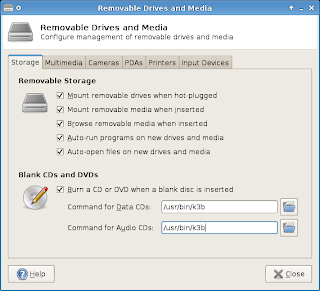 The first tab you will see is Storage tab. This refers to removable memory and CD/DVDs. I can't find much difference between the hot-plugged and removable mounting, so I use both. Choosing to browse when inserted will open Thunar to the mounted drive's directory, i.e. /media/disk in some systems. Auto-run can run an executable stored on a disk or USB drive. Auto-open appears to do the same as browse with the files I'm using, but try it yourself if you wish to see how it reacts with the files you use. The command entry is for choosing what burning software you want to use for CDs/DVDs. This will bring up the program and prepare you to burn a disk when inserting a blank CD or DVD, as in XP for those of you used to a Windows environment.
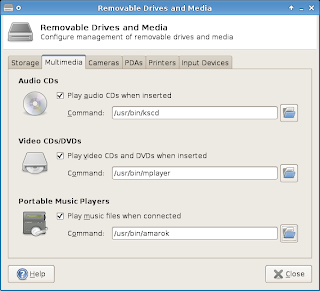 The second tab is for Multimedia applications. This refers to audio and video CDs as well as DVDs. It even has a feature Windows doesn't, it can autoplay from a portable music player, such as an iPod, flash media players, or the Toshiba Gigabeat line.
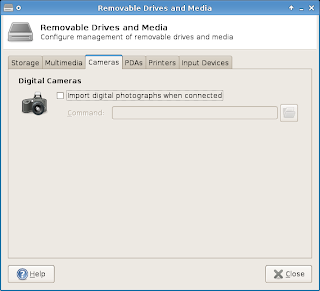 The third tab, Cameras, is solely for importing photos from a camera when it is connected. You can either set Thunar to open the directory, if you know what the camera will be mounted as, or open a photo viewer or editor. This is handy for setting a computer up as a picture frame.
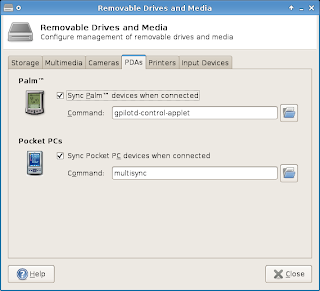 Yet another cool feature lies in the next tab, PDAs. The software to sync your Palm or Pocket PC device is included with many Linux distros, including Xubuntu.
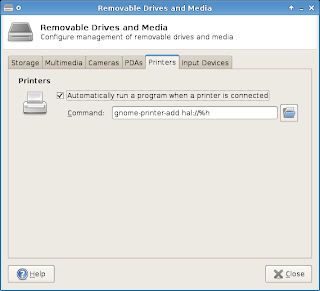 The Printers tab has a feature that is normally not enabled, but should be. You can have your Linux distro run a script to install a USB printer when it is plugged in. It's a great feature, and one Linux should always have.
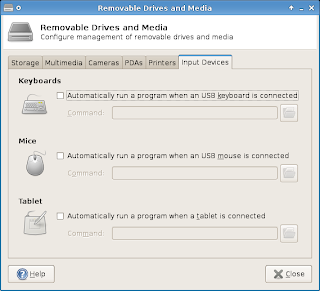 Input Devices allows you to execute a command when a USB keyboard, mouse, or tablet is plugged in. I'm not sure what command you would need to run, but maybe someone does.
Editing the Config File Manually
The file you need to manage is /home/(user name)/.config/Thunar/volmanrc. If it doesn't exist you can create it. At the terminal type sudo mousepad /.config/Thunar/volmanrc and then type your password. Here's what the file should look like:
[Configuration]
AutomountDrives=TRUE
AutomountMedia=TRUE
Autobrowse=TRUE
Autorun=TRUE
Autoopen=TRUE
Autoburn=TRUE
AutoburnDataCommand=/usr/bin/k3b
AutoburnAudioCommand=/usr/bin/k3b
AutoplayAudioCd=TRUE
AutoplayAudioCdCommand=/usr/bin/kscd
AutoplayVideoCd=TRUE
AutoplayVideoCdCommand=/usr/bin/mplayer
Autoipod=TRUE
AutoipodCommand=/usr/bin/amarok
Autophoto=FALSE
AutophotoCommand=
Autopalm=TRUE
AutopalmCommand=gpilotd-control-applet
Autopocketpc=TRUE
AutopocketpcCommand=multisync
Autoprinter=TRUE
AutoprinterCommand=gnome-printer-add hal://%h
Autokeyboard=FALSE
AutokeyboardCommand=
Automouse=FALSE
AutomouseCommand=
Autotablet=FALSE
AutotabletCommand=
Changing the options to either TRUE or FALSE will change the setting from being enabled or disabled. If an option is not present in the config file then it is automatically disabled. The options fall in line with the graphical version, in order from first tab through to the last. The Command option allows you to enter a command to be run when the automount occurs, for example when a CD is inserted this file is set to start K3B, a CD burning application.
Hope that helps a lot of you wanting to add or remove some of the drive management within XFCE.
This procedure was developed using XFCE 4.4.0.
As always, please be careful following procedures from this or any site as they can leave you with a system that's damaged and a pain to fix if a mistake is made. Make backups of any changes you make as always, if editing config files by hand.
Graphical Method
The autoplay features are handled by Thunar's volume management. Thunar is XFCE's file manager. The graphical manager is located in a place where you would never find it unless you knew where to look already. It's in the Settings > Settings Manager > File Manager and then the Advanced tab. You will see the word Configure is in blue, that's where you need to go. Well placed, eh?
 The first tab you will see is Storage tab. This refers to removable memory and CD/DVDs. I can't find much difference between the hot-plugged and removable mounting, so I use both. Choosing to browse when inserted will open Thunar to the mounted drive's directory, i.e. /media/disk in some systems. Auto-run can run an executable stored on a disk or USB drive. Auto-open appears to do the same as browse with the files I'm using, but try it yourself if you wish to see how it reacts with the files you use. The command entry is for choosing what burning software you want to use for CDs/DVDs. This will bring up the program and prepare you to burn a disk when inserting a blank CD or DVD, as in XP for those of you used to a Windows environment.
 The second tab is for Multimedia applications. This refers to audio and video CDs as well as DVDs. It even has a feature Windows doesn't, it can autoplay from a portable music player, such as an iPod, flash media players, or the Toshiba Gigabeat line.
 The third tab, Cameras, is solely for importing photos from a camera when it is connected. You can either set Thunar to open the directory, if you know what the camera will be mounted as, or open a photo viewer or editor. This is handy for setting a computer up as a picture frame.
 Yet another cool feature lies in the next tab, PDAs. The software to sync your Palm or Pocket PC device is included with many Linux distros, including Xubuntu.
 The Printers tab has a feature that is normally not enabled, but should be. You can have your Linux distro run a script to install a USB printer when it is plugged in. It's a great feature, and one Linux should always have.
 Input Devices allows you to execute a command when a USB keyboard, mouse, or tablet is plugged in. I'm not sure what command you would need to run, but maybe someone does.
Editing the Config File Manually
The file you need to manage is /home/(user name)/.config/Thunar/volmanrc. If it doesn't exist you can create it. At the terminal type sudo mousepad /.config/Thunar/volmanrc and then type your password. Here's what the file should look like:
[Configuration]
AutomountDrives=TRUE
AutomountMedia=TRUE
Autobrowse=TRUE
Autorun=TRUE
Autoopen=TRUE
Autoburn=TRUE
AutoburnDataCommand=/usr/bin/k3b
AutoburnAudioCommand=/usr/bin/k3b
AutoplayAudioCd=TRUE
AutoplayAudioCdCommand=/usr/bin/kscd
AutoplayVideoCd=TRUE
AutoplayVideoCdCommand=/usr/bin/mplayer
Autoipod=TRUE
AutoipodCommand=/usr/bin/amarok
Autophoto=FALSE
AutophotoCommand=
Autopalm=TRUE
AutopalmCommand=gpilotd-control-applet
Autopocketpc=TRUE
AutopocketpcCommand=multisync
Autoprinter=TRUE
AutoprinterCommand=gnome-printer-add hal://%h
Autokeyboard=FALSE
AutokeyboardCommand=
Automouse=FALSE
AutomouseCommand=
Autotablet=FALSE
AutotabletCommand=
Changing the options to either TRUE or FALSE will change the setting from being enabled or disabled. If an option is not present in the config file then it is automatically disabled. The options fall in line with the graphical version, in order from first tab through to the last. The Command option allows you to enter a command to be run when the automount occurs, for example when a CD is inserted this file is set to start K3B, a CD burning application.
Hope that helps a lot of you wanting to add or remove some of the drive management within XFCE.
1.19.2008
Average Joe Scripting - Introduction
You might be interested in this series of posts if you want to learn more about shell scripting. Knowing more about shell scripting will help you in several areas including how to be more effective with Linux system administration, understanding installation and setup scripts and how to fix them, or knowing what to do when you're having a hard time finding just the right program to fit your need.
One of the main things that I like so much about Linux is the amount of power and flexibility that it gives its users. This is evident in a lot of places on a Linux system, but one of the main areas of interest for me is shell scripting. For the uninitiated among you, the “art” of shell scripting allows you to write a text file that holds commands (like the ones you type in the X terminal window) and then allows you to use a shell to execute them. I'm using the term "shell" here to mean a program that takes text input and then does something with it. Scripting is a huge help in automating system administration tasks, and when coupled with the cron daemon, it takes mundane or repetitive tasks and does them automatically for you. If you're not a hard-core system administrator though, don't lose heart – there are tons of cool things that can be done with shell scripts that all of us can enjoy. Having trouble finding a program that can record your favorite radio show from the Internet to a format you want? No problem, just use a script to combine several programs to get what you want. Setting up several educational computers for your students and don't want to keep doing the same install procedure over and over? Dump all of the commands into a shell script and throw it on a flash drive. Trouble with your droid? Just write a script to...
Ever since I started programming (oh so long ago), good code “modularity” has been one of the goals of most new programming languages. Modularity is the quality of a language or architecture that allows a programmer to write blocks of code that work well together, but are loosely coupled enough that they can be changed or replaced without breaking anything. Each programming block doesn't care about what another one is as long as it gives the right data. It's kind of like calling the operator two different times in a row to get a phone number. You don't care if you get a different operator each time as long as they give you the number you ask for. Shell scripting gives you the ability to pull together completely different applications written in different languages into one cohesive package that does your bidding – which to me is a great model of code modularity.
There's not much more satisfying to me (in geekdom at least) than taking 15 minutes and writing a shell script to do what a $20 to $2000 piece of software would do. Granted, entering your credit card number on a web site takes less time than learning the basics of shell scripting, but that program you just bought will only solve 1 or 2 of your problems, whereas shell scripting will solve most of them at no monetary cost to you.
In this series of posts I'm hoping to not only give you nifty shell scripts that will help you do fun and useful things, but to teach you the basics of how shell scripting works. Along the way, I'll explain when/why/how things work the way they do in a script and some tips and tricks to make life easier. So, please stay tuned for future installments of this series.
Next time - The Anatomy of a Simple Shell Script.
Enjoy!
One of the main things that I like so much about Linux is the amount of power and flexibility that it gives its users. This is evident in a lot of places on a Linux system, but one of the main areas of interest for me is shell scripting. For the uninitiated among you, the “art” of shell scripting allows you to write a text file that holds commands (like the ones you type in the X terminal window) and then allows you to use a shell to execute them. I'm using the term "shell" here to mean a program that takes text input and then does something with it. Scripting is a huge help in automating system administration tasks, and when coupled with the cron daemon, it takes mundane or repetitive tasks and does them automatically for you. If you're not a hard-core system administrator though, don't lose heart – there are tons of cool things that can be done with shell scripts that all of us can enjoy. Having trouble finding a program that can record your favorite radio show from the Internet to a format you want? No problem, just use a script to combine several programs to get what you want. Setting up several educational computers for your students and don't want to keep doing the same install procedure over and over? Dump all of the commands into a shell script and throw it on a flash drive. Trouble with your droid? Just write a script to...
Ever since I started programming (oh so long ago), good code “modularity” has been one of the goals of most new programming languages. Modularity is the quality of a language or architecture that allows a programmer to write blocks of code that work well together, but are loosely coupled enough that they can be changed or replaced without breaking anything. Each programming block doesn't care about what another one is as long as it gives the right data. It's kind of like calling the operator two different times in a row to get a phone number. You don't care if you get a different operator each time as long as they give you the number you ask for. Shell scripting gives you the ability to pull together completely different applications written in different languages into one cohesive package that does your bidding – which to me is a great model of code modularity.
There's not much more satisfying to me (in geekdom at least) than taking 15 minutes and writing a shell script to do what a $20 to $2000 piece of software would do. Granted, entering your credit card number on a web site takes less time than learning the basics of shell scripting, but that program you just bought will only solve 1 or 2 of your problems, whereas shell scripting will solve most of them at no monetary cost to you.
In this series of posts I'm hoping to not only give you nifty shell scripts that will help you do fun and useful things, but to teach you the basics of how shell scripting works. Along the way, I'll explain when/why/how things work the way they do in a script and some tips and tricks to make life easier. So, please stay tuned for future installments of this series.
Next time - The Anatomy of a Simple Shell Script.
Enjoy!
1.18.2008
How do you use Linux?
We're hoping we're helping a lot of you out there with a variety of problems or situations. But we like the feedback, or suggestions. We're especially interested in how you use Linux, and how you have it set up in business or educational settings. So let us know what you like, what you don't, and how you use Linux so we can better tailor our approach. Either comment on the posts or email us at eonsproject (at) gmail.com.
Thanks, and keep enjoying the FOSS lifestyle.
Thanks, and keep enjoying the FOSS lifestyle.
Make any Debian derivative an educational system
Education is crucial to society. Great opener eh? I'm making this post mostly for educators, but it can also work well for a computer at home to help the kids learn. I've tried these myself and had a first grade teacher and high school chemistry teacher look at them as well. These are all packages found in the Ubuntu and Debian repositories. There are a lot of high school packages, so I have my top picks in each lesson area. The package name is listed in parentheses next to the name. I've only tested this in Debian derivatives, but it could work in any distro capable of utilizing .deb packages.
Elementary School Applications
Childsplay - (childsplay) This is a well-intentioned suite of educational software, but with poor documentation and instructions. It's a translation from French, thus causing the English documentation to be lacking. Worth trying, the learning is done through game-like programs. For more games install the plugins (childsplay-plugins). These games are mainly meant for 4th grade and lower. It should work in KDE, Gnome, and XFCE.
Kanagram - (kanagram) This is an excellent anagram game, fun puzzles for all ages. I would recommend it for grades 3 and up, it's a bit much for first and second graders, since it requires a little larger vocabulary and pattern recognition skills. This would be good for older people as well to keep their mind sharp. It works in KDE or XFCE.
Ktouch - (ktouch) This is a typing tutor, and can actually be used for all ages, though I recommend it for kids, possibly even before school age, though hand size may be a factor. It has dynamically updated typing speeds and variable levels of difficulty. It's well written and I wish it had been around in 1988, I might be able to type correctly now. It will work in KDE or XFCE.
Kbruch - (kbruch) One of the things found to be a common problem among students is the ability to manipulate fractions. In Indiana they're taught in 3rd grade, so I recommend using this program for 3rd grade and above, though starting it earlier would be beneficial. This is a fraction teaching and practice program that allows you to manipulate fractions in various ways. It works in KDE and XFCE.
KGeography - (kgeography) A very good geography program with built in quizzing abilities. It has countries by continent and regions of countries as well. Worth a look for all grade levels actually. Works in KDE and XFCE.
Khangman - (khangman) A word game based on hangman, where you guess letters to get the word, and only 10 wrong guesses allowed. It has 4 difficulty settings. I would recommend it for grades 2 and up. Works in KDE and XFCE.
Linux Letters and Numbers - (lletters) A letter and number learning application, and very simple. I recommend it for Kindergarten and below. It should work in Gnome and XFCE, but I haven't tried it in KDE.
Little Wizard - (littlewizard) An insanely cool intro to programming and logic meant for Elementary kids. It uses drag and drop modules so all the work can be done without a keyboard. It takes a bit to learn and I recommend reading the documentation and specializing it to your students style of learning. I wish they had this when I was a kid, I started in BASIC in 1991, actually one of the first books I was reading. It works in Gnome and XFCE.
Gcompris - (gcompris) This is a suite for ages 2-10 meant to teach basic skills to kids. It's a nice unified environment, but I'm not a big fan. I recommend trying it out and seeing how it works for your needs. It works in Gnome or XFCE.
High School
-Chemistry
Gnome Chemistry Utils - (gcu-bin) This is a package containing a 3D modeler, a chemical calculator, and a digital periodic table. Works in Gnome and XFCE.
Kalzium - (kalzium) A KDE/XFCE periodic table chock full of pictures, atomic data, structures, spectra, and other information on each element. Works in KDE and XFCE.
-Music
GNU Solfege - (solfege) An ear training program meant to help musicians and such. For Gnome and XFCE.
-Math
Kayali - (kayali) Still in beta, but a good algebraic evaluator. Worth a look. For Gnome and XFCE.
-Astronomy
Stellarium - (stellarium) An absolutely amazing program. Gives realistic sky views in real time, from any location on earth. Great for anyone. Somehow still in beta too. It's actually for Linux, Mac, and Windows.
Celestia - (celestia-glut) A universal space simulator that allows you to fly through space. Also allows plugins to add more abilities.
-Physics
Oregano - (oregano) An electrical circuit designer. Takes a bit to learn, but lots of uses for upper level physics or pre-engineering. Works in Gnome and XFCE.
PCB Designer - (pcb) Ok, admittedly this may be a bit above high school level, but good for those interested in physics and electronics. It works in Gnome and XFCE.
-Languages
Kverbos - (kverbos) A Spanish verb-learning program designed for KDE and XFCE.
Klettres - (klettres) An alphabet learning program for Czech, Danish, Dutch, English, French, Italian, and Slovak. Designed for KDE and XFCE.
KLatin - (klatin) A Latin learning and revision program for KDE and XFCE.
Kiten - (kiten) A Japanese learning and revision program similar to KLatin. Also for KDE and XFCE.
Teaching Tools
Keduca - (keduca) An exam writing and recording program designed for networks. Students take the teacher-made exams on the computer. In my opinion there are better FOSS options out there, but this is it in the repository. Works in KDE and XFCE.
For all these programs and more you can go through the Add/Remove utility in Ubuntu, and find even more options not mentioned here.
Elementary School Applications
Childsplay - (childsplay) This is a well-intentioned suite of educational software, but with poor documentation and instructions. It's a translation from French, thus causing the English documentation to be lacking. Worth trying, the learning is done through game-like programs. For more games install the plugins (childsplay-plugins). These games are mainly meant for 4th grade and lower. It should work in KDE, Gnome, and XFCE.
Kanagram - (kanagram) This is an excellent anagram game, fun puzzles for all ages. I would recommend it for grades 3 and up, it's a bit much for first and second graders, since it requires a little larger vocabulary and pattern recognition skills. This would be good for older people as well to keep their mind sharp. It works in KDE or XFCE.
Ktouch - (ktouch) This is a typing tutor, and can actually be used for all ages, though I recommend it for kids, possibly even before school age, though hand size may be a factor. It has dynamically updated typing speeds and variable levels of difficulty. It's well written and I wish it had been around in 1988, I might be able to type correctly now. It will work in KDE or XFCE.
Kbruch - (kbruch) One of the things found to be a common problem among students is the ability to manipulate fractions. In Indiana they're taught in 3rd grade, so I recommend using this program for 3rd grade and above, though starting it earlier would be beneficial. This is a fraction teaching and practice program that allows you to manipulate fractions in various ways. It works in KDE and XFCE.
KGeography - (kgeography) A very good geography program with built in quizzing abilities. It has countries by continent and regions of countries as well. Worth a look for all grade levels actually. Works in KDE and XFCE.
Khangman - (khangman) A word game based on hangman, where you guess letters to get the word, and only 10 wrong guesses allowed. It has 4 difficulty settings. I would recommend it for grades 2 and up. Works in KDE and XFCE.
Linux Letters and Numbers - (lletters) A letter and number learning application, and very simple. I recommend it for Kindergarten and below. It should work in Gnome and XFCE, but I haven't tried it in KDE.
Little Wizard - (littlewizard) An insanely cool intro to programming and logic meant for Elementary kids. It uses drag and drop modules so all the work can be done without a keyboard. It takes a bit to learn and I recommend reading the documentation and specializing it to your students style of learning. I wish they had this when I was a kid, I started in BASIC in 1991, actually one of the first books I was reading. It works in Gnome and XFCE.
Gcompris - (gcompris) This is a suite for ages 2-10 meant to teach basic skills to kids. It's a nice unified environment, but I'm not a big fan. I recommend trying it out and seeing how it works for your needs. It works in Gnome or XFCE.
High School
-Chemistry
Gnome Chemistry Utils - (gcu-bin) This is a package containing a 3D modeler, a chemical calculator, and a digital periodic table. Works in Gnome and XFCE.
Kalzium - (kalzium) A KDE/XFCE periodic table chock full of pictures, atomic data, structures, spectra, and other information on each element. Works in KDE and XFCE.
-Music
GNU Solfege - (solfege) An ear training program meant to help musicians and such. For Gnome and XFCE.
-Math
Kayali - (kayali) Still in beta, but a good algebraic evaluator. Worth a look. For Gnome and XFCE.
-Astronomy
Stellarium - (stellarium) An absolutely amazing program. Gives realistic sky views in real time, from any location on earth. Great for anyone. Somehow still in beta too. It's actually for Linux, Mac, and Windows.
Celestia - (celestia-glut) A universal space simulator that allows you to fly through space. Also allows plugins to add more abilities.
-Physics
Oregano - (oregano) An electrical circuit designer. Takes a bit to learn, but lots of uses for upper level physics or pre-engineering. Works in Gnome and XFCE.
PCB Designer - (pcb) Ok, admittedly this may be a bit above high school level, but good for those interested in physics and electronics. It works in Gnome and XFCE.
-Languages
Kverbos - (kverbos) A Spanish verb-learning program designed for KDE and XFCE.
Klettres - (klettres) An alphabet learning program for Czech, Danish, Dutch, English, French, Italian, and Slovak. Designed for KDE and XFCE.
KLatin - (klatin) A Latin learning and revision program for KDE and XFCE.
Kiten - (kiten) A Japanese learning and revision program similar to KLatin. Also for KDE and XFCE.
Teaching Tools
Keduca - (keduca) An exam writing and recording program designed for networks. Students take the teacher-made exams on the computer. In my opinion there are better FOSS options out there, but this is it in the repository. Works in KDE and XFCE.
For all these programs and more you can go through the Add/Remove utility in Ubuntu, and find even more options not mentioned here.
1.15.2008
Linux multimedia roundup
One area we've struggled with, and from what we've seen it's a problem for a lot of users as well, is media support. Linux doesn't natively allow playing encrypted DVDs (because of proprietary coding and moral dismay), though there's a fix. So here is a roundup of our picks for media players. Beside the name of the programs I have listed the repository package name for easy install through apt-get.
Audio Players
There are three great media players, almost all identical actually. I've always been a Winamp fan in Windows, and they make a version of Winamp 3 for Linux. These are three apparent Winamp clones, but all good players which I haven't had trouble with. Beep Media Player (beep-media-player), XMMS (xmms), and Audacious (audacious) are great programs and play mp1, mp2, mp3, Ogg Vorbis, wav, raw, and au file support.
CD Players
Here is one category Jeremy and I disagree on, and it's only because he has had some compatibility issues on his laptop. I prefer KsCD (kscd) for its features and simplicity. It's a very clean program, and I like it for CDs. Jeremy prefers the Free Software Foundation's CD Player (gnome-media). I recommend trying them both and seeing which you like.
DVD Players
VLC Media Player (vlc) is great program with excellent DVD playback. It's also a full media player, though I prefer other programs for other media types, though if you like an all-in-one solution to your media playing needs I recommend VLC.
Photo Editing
Most likely everyone who has used Linux, almost any distro, for a length of time is well aware of Gimp (gimp). Gimp is like Adobe Photoshop, but free. It's a wonderful photo editor and can save in a wide range of file formats. I recommend picking up the gimp-data-extras package as well for additional features, especially for the professional or semi-pro digital artist.
Audio Players
There are three great media players, almost all identical actually. I've always been a Winamp fan in Windows, and they make a version of Winamp 3 for Linux. These are three apparent Winamp clones, but all good players which I haven't had trouble with. Beep Media Player (beep-media-player), XMMS (xmms), and Audacious (audacious) are great programs and play mp1, mp2, mp3, Ogg Vorbis, wav, raw, and au file support.
CD Players
Here is one category Jeremy and I disagree on, and it's only because he has had some compatibility issues on his laptop. I prefer KsCD (kscd) for its features and simplicity. It's a very clean program, and I like it for CDs. Jeremy prefers the Free Software Foundation's CD Player (gnome-media). I recommend trying them both and seeing which you like.
DVD Players
VLC Media Player (vlc) is great program with excellent DVD playback. It's also a full media player, though I prefer other programs for other media types, though if you like an all-in-one solution to your media playing needs I recommend VLC.
Photo Editing
Most likely everyone who has used Linux, almost any distro, for a length of time is well aware of Gimp (gimp). Gimp is like Adobe Photoshop, but free. It's a wonderful photo editor and can save in a wide range of file formats. I recommend picking up the gimp-data-extras package as well for additional features, especially for the professional or semi-pro digital artist.
Subscribe to:
Posts (Atom)

 Posts
Posts


